
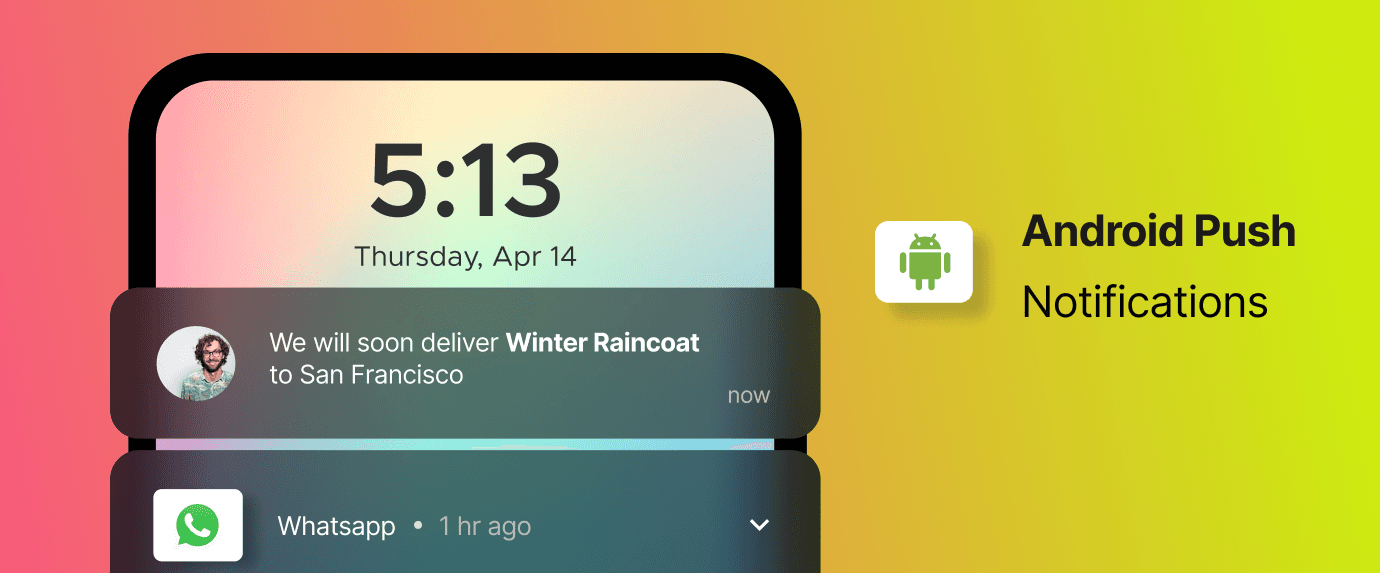
You install WhatsApp, Gmail, or Telegram on your new Chinese phone — and messages arrive 20 minutes late. Your phone looks fine, notifications are turned on, and the app works perfectly when you open it. So what's going on? This is one of the most common complaints from users of Chinese phones, and it has a clear explanation — and a clear fix.
The Root Cause: Aggressive Battery Optimization
Chinese Android Variant OS — HyperOS (Xiaomi), OriginOS (VIVO/iQOO), ColorOS (OPPO), MagicOS (HONOR) — all ship with aggressive battery management systems that are far more restrictive than stock Android. To maximize battery life and improve benchmark scores, they kill background apps and restrict background processes more aggressively than Google intended. On top of that, Chinese apps don't normally use Google's Firebase Cloud Messaging (FCM) — they rely on their own push services instead. Because of this, Chinese Android Variant OS treats FCM as a non-essential background process and aggressively blocks it to save battery, which is exactly why international apps that depend on FCM receive notifications late or not at all.
Notifications rely on background processes. When your phone receives a push notification, an app like WhatsApp needs to run a background service that listens for incoming messages. Chinese Android Variant OS frequently kill these background services to save battery — meaning notifications only arrive the next time you open the app manually.
Why This Happens More on Chinese Phones
- Chinese ROMs use stricter auto-start restrictions that block apps from launching in the background
- Battery optimization features aggressively kill processes that run for more than a few seconds in the background
- Many Chinese phones use a custom push notification service instead of Google's Firebase Cloud Messaging (FCM), which international apps don't support
- System-level memory management reclaims RAM from apps more quickly than stock Android
How to Fix Notification Lag on Chinese Phones
The fix is the same across all Chinese Android brands: disable battery optimization for the affected apps and enable auto-start. The exact steps differ slightly by brand — follow the guide for your device below.
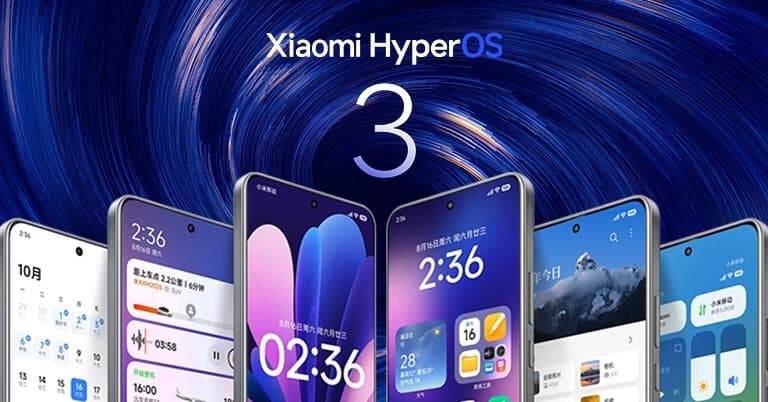
Xiaomi / Redmi (HyperOS)
- 1
Enable Auto-Start
Go to Settings → Apps → Manage Apps → tap the app (e.g., WhatsApp) → scroll down and toggle on "Autostart".
- 2
Disable Battery Saver for the App
In the same app settings screen, tap "Battery Saver" and select "No restrictions".
- 3
Lock the App in Recents
Open the app, then open the Recents screen. Long-press the app card and tap the lock icon. This prevents HyperOS from killing it when clearing recents.
- 4
Disable HyperOS Optimization (Optional)
Go to Settings → Additional Settings → Developer Options → toggle off "MIUI Optimization". This gives apps more standard Android behavior but may affect some HyperOS features.
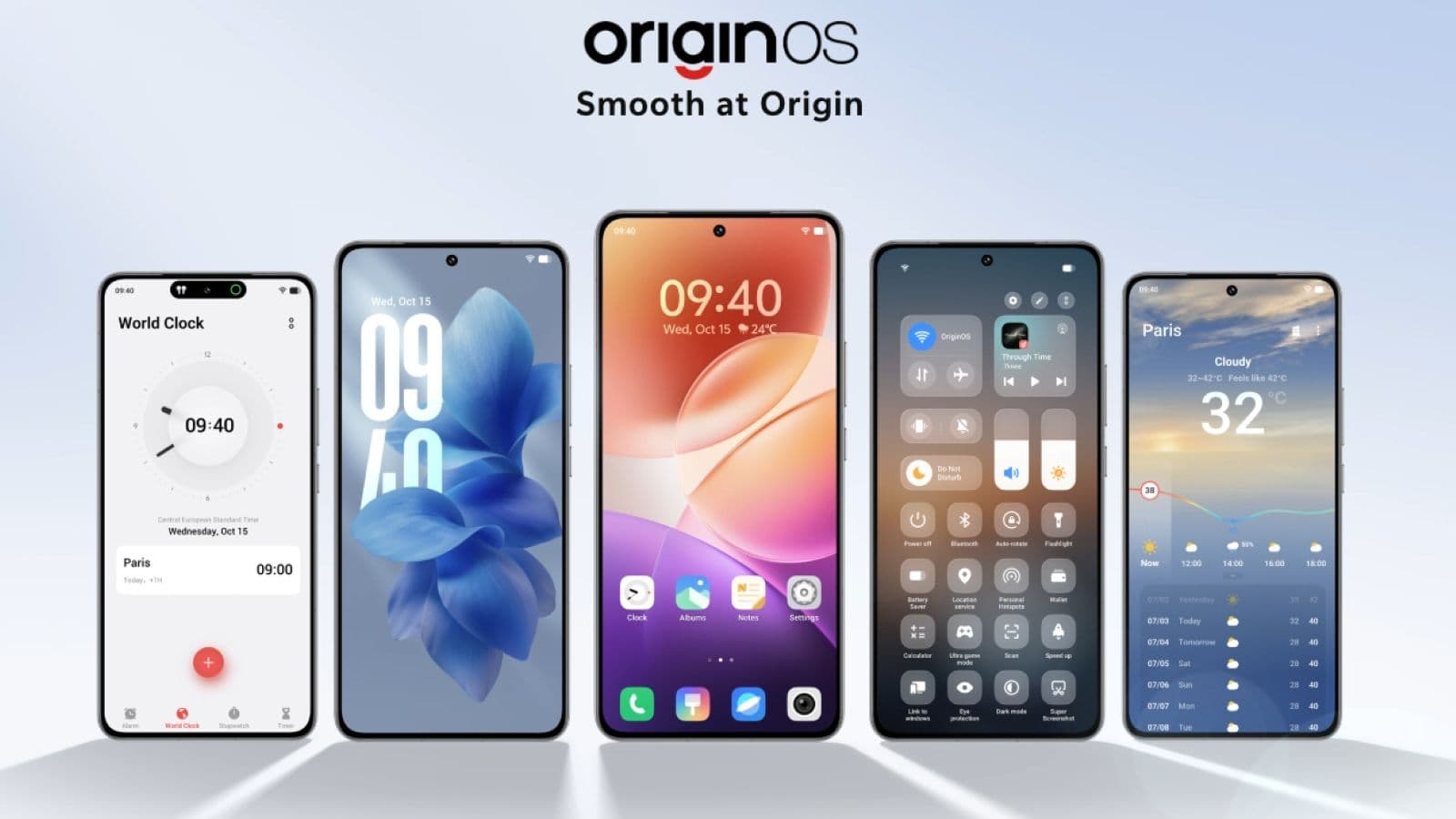
VIVO / iQOO (OriginOS & FuntouchOS)
- 1
Enable Background App Refresh
Go to Settings → Battery → Background Power Consumption Management → find the app and set it to "Allow".
- 2
Enable High Background Activity
Go to Settings → Apps → tap the app → Permissions → enable "High Background Activity".
- 3
Disable Memory Management Killing
Settings → More Settings → Developer Options → turn off "Background Process Limit" or set it to "Standard limit".
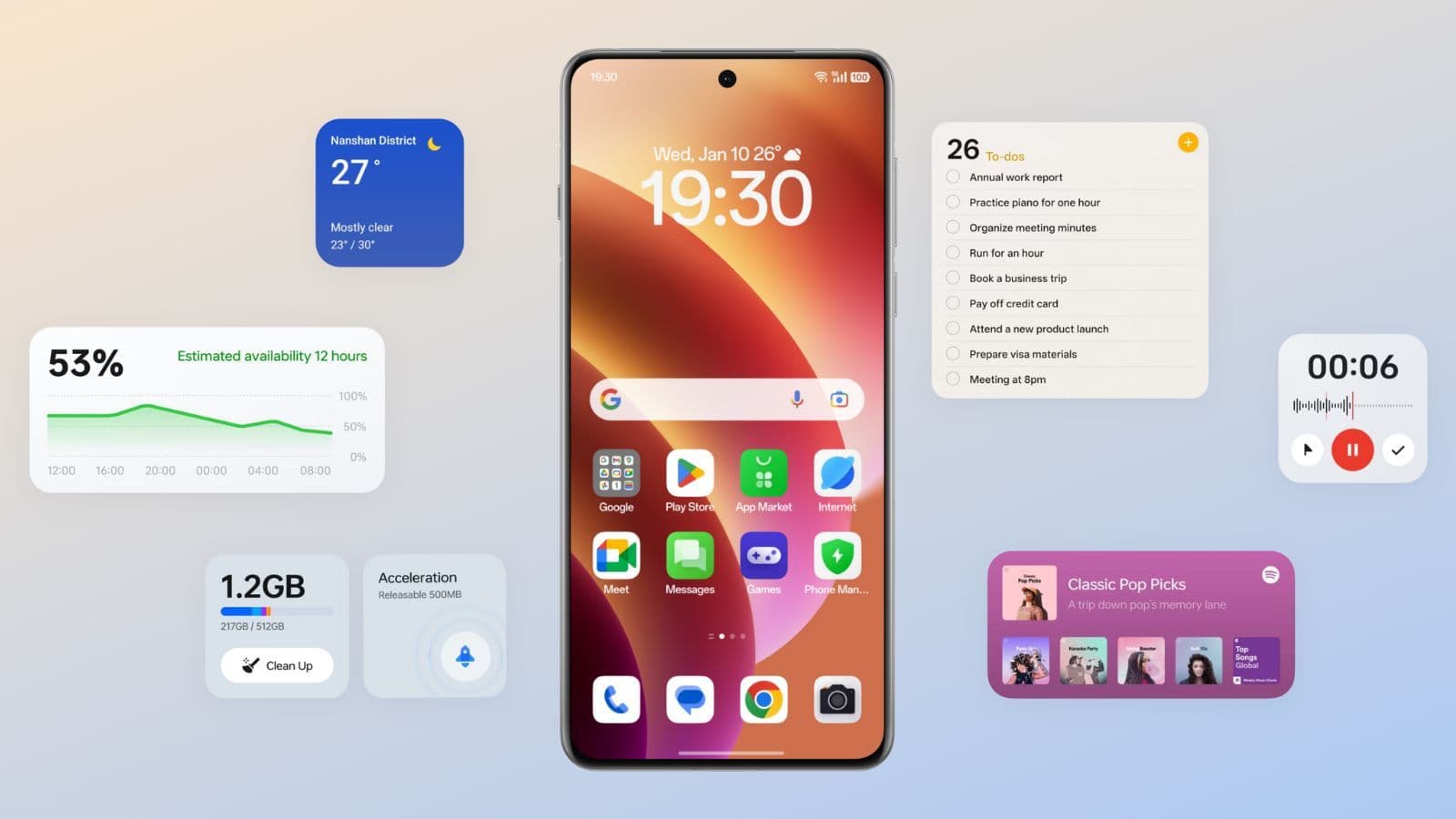
OPPO / OnePlus (ColorOS)
- 1
Disable Battery Optimization
Go to Settings → Battery → Battery Optimization → find the app → select "Don't optimize".
- 2
Enable Auto-Start
Settings → Apps → App Management → tap the app → Auto-Launch → toggle on.
- 3
Allow Background Activity
In the same app settings, find "Allow Background Activity" and enable it.
HONOR (MagicOS)

- 1
Enable Auto-Launch
Go to Settings → Apps → Apps → tap the app → Battery → enable "Allow Auto-Launch".
- 2
Set Battery Usage to Unrestricted
In the same Battery screen, tap "App launch" and switch from "Automatic" to "Manual", then enable all three toggles: Auto-launch, Secondary launch, and Run in background.
- 3
Disable Power-Intensive Prompt
Settings → Battery → More Battery Settings → disable "Power-intensive prompt" for the affected apps.
Apps Most Affected by Notification Lag
| App | Why It's Affected | Priority Fix |
|---|---|---|
| Relies on persistent background socket connection | Auto-start + No battery restriction | |
| Telegram | Uses its own push service that needs background access | Auto-start + No battery restriction |
| Gmail | FCM push, but killed by aggressive memory management | No battery restriction |
| Signal | Privacy-focused background process, easily killed | Auto-start + No battery restriction |
| Instagram DMs | Background fetch restricted | No battery restriction |
| Email clients | Polling requires background wakeup | Auto-start + No battery restriction |
Apply the auto-start and battery restriction fixes to all messaging apps at once — not just one. Chinese ROMs treat each app independently, so you need to whitelist each one separately.
Does This Affect Battery Life?
Slightly — but far less than you'd expect. Modern apps like WhatsApp and Telegram are very efficient in the background. Allowing them to run unrestricted typically adds less than 1-2% battery drain per day. The trade-off is absolutely worth it for reliable notifications. Chinese phone batteries are large enough (typically 5000–6000 mAh) that this difference is negligible in daily use.
Frequently Asked Questions
Why does WhatsApp work fine on a Samsung but not my Chinese phone?
Samsung's One UI is much more lenient with background processes by default, and it uses standard Android battery optimization APIs that WhatsApp is built to work around. Chinese ROMs use proprietary, more aggressive systems that apps don't always account for.
Will a factory reset fix notification lag?
No — the notification lag is caused by default system settings, not a software glitch. After a factory reset you'd need to apply the same battery optimization and auto-start fixes again.
My notifications are enabled but still delayed. What else can I try?
Check that the app has notification permission in Settings → Apps → [App] → Notifications. Also make sure your phone isn't in "Ultra battery saver" or "Power saving" mode, as these modes forcibly suspend all background activity.
Does this affect all Chinese phones, including global versions?
Global ROMs are typically less aggressive than CN ROMs, but you may still experience some notification lag depending on the brand. The same fixes apply — enabling auto-start and disabling battery optimization will improve notification delivery on both global and CN ROM devices.
I enabled auto-start but still get delayed notifications. What next?
Make sure you've also set battery restriction to "No restrictions" or "Unrestricted" — auto-start alone isn't always enough. Also lock the app in the recent apps screen so the system doesn't kill it when you switch apps.
Once you've applied these fixes, notification delivery on Chinese phones is just as fast and reliable as on any other Android phone. The performance, cameras, and value you get from a Chinese flagship are well worth the 5 minutes it takes to configure these settings.